
Table of Contents
ToggleIs your laptop running slower than a turtle on vacation? If it takes longer to load a webpage than it does for you to brew a cup of coffee, it might be time for a RAM upgrade. Think of your laptop’s RAM as its short-term memory; the more it has, the more tasks it can juggle without breaking a sweat.
Understanding Laptop RAM
RAM serves as a crucial component in a laptop’s performance, significantly impacting how efficiently it handles tasks. Upgrading RAM can lead to noticeable improvements in speed and responsiveness.
What Is RAM?
RAM, or Random Access Memory, acts as a laptop’s short-term memory. While a device is running, RAM temporarily stores data that applications and processes need. This quick access allows for faster operation and smoother multitasking. When RAM is insufficient, the laptop struggles to manage tasks effectively, leading to slower performance. Increasing RAM can enhance the user experience by allowing more applications to run simultaneously.
Types of RAM in Laptops
Laptops primarily use two types of RAM: DDR3 and DDR4. DDR3 operates at a lower speed but is more cost-effective, suitable for less demanding tasks. Conversely, DDR4 offers improved speed and efficiency, making it ideal for modern applications and gaming. When considering an upgrade, compatibility with the laptop’s motherboard is critical. Checking the specifications ensures the selected RAM type matches the system’s requirements.
Benefits of a Laptop RAM Upgrade
Upgrading laptop RAM offers significant advantages. Enhanced speed and efficiency characterize the main benefits, making daily tasks smoother and quicker.
Improved Performance
Performance improvements become evident with a RAM increase. The laptop experiences faster boot times and improved load speeds for applications. Upgrading RAM from 4GB to 8GB can yield a noticeable reduction in lag during regular use. Devices with more RAM handle resource-intensive applications more effectively, such as graphic design software and gaming platforms. Upgrading to DDR4 can enhance data transfer rates compared to DDR3, providing an edge in speed. Such enhancements make the laptop more responsive and enjoyable for various activities.
Enhanced Multitasking
Multitasking capabilities expand significantly with increased RAM. Users can run multiple applications simultaneously without experiencing slowdowns. For instance, editing documents, streaming videos, and browsing the web become seamless with adequate RAM. Increased RAM reduces the need for the system to rely on slower storage retrieval processes, enhancing productivity. When working on large datasets or virtual machines, more RAM helps maintain smooth operational flow. This upgrade allows for better management of heavy workloads, thus improving overall efficiency in daily tasks.
How to Determine If You Need a RAM Upgrade
Upgrading RAM enhances laptop performance. Identifying specific signs can indicate whether an upgrade is necessary.
Signs That Indicate a Need for Upgrade
Experiencing sluggish performance during multitasking signals a potential need for more RAM. Frequent application crashes or freezing often indicates insufficient memory. Slow load times for applications also suggest that the current RAM is inadequate. Additionally, using over 80% of available RAM during basic tasks highlights the need for an upgrade. Finally, when engaging with resource-heavy programs, like video editing software or gaming platforms, poor responsiveness reflects a clear call for more memory.
Checking Current RAM Capacity
Finding out the current RAM capacity is straightforward. Users can access system settings on their laptops to view total RAM installed. For Windows, simply navigate to the ‘About’ section under system settings. Mac users can find this information under ‘About This Mac.’ Memory upgrades are not only about capacity but also compatibility. Knowing whether the existing RAM is DDR3 or DDR4 significantly impacts the upgrade process. Using third-party applications can also provide insights into RAM usage and specifications, aiding in decision-making.
Steps to Upgrade Laptop RAM
Upgrading laptop RAM can significantly enhance performance and multitasking abilities. Following these steps ensures a smooth and effective upgrade.
Choosing the Right RAM
Selecting compatible RAM requires attention to specifications. Identify whether the laptop uses DDR3 or DDR4 RAM, as each type has distinct characteristics. Check the laptop’s user manual or manufacturer’s website for compatibility information. Aim for the maximum RAM capacity supported by the laptop, which often exceeds 16 GB for most models. Evaluate speed ratings such as 2400 MHz for DDR4 and 1600 MHz for DDR3. Higher speeds contribute to better overall performance. Research trustworthy brands for reliability, as using reputable manufacturers ensures consistent quality.
Installation Process
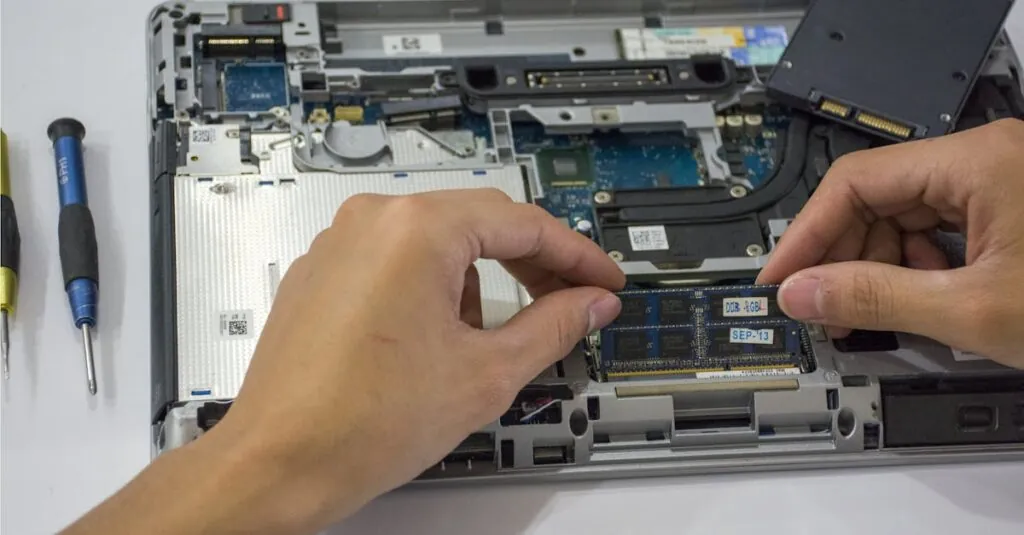
Installing new RAM involves careful handling and organization. First, power down the laptop and remove the battery, if applicable. Use a professional-grade screwdriver to open the laptop’s back panel securely. Wear an anti-static wrist strap to prevent damage from electrostatic discharge. Locate the existing RAM slots and gently release the clips holding the RAM in place. Insert the new RAM module at an angle, then press down until the clips lock into position. Reassemble the laptop by replacing the back panel and reconnecting the battery. Finally, power on the laptop and verify the RAM installation through system settings.
Common Myths About Laptop RAM Upgrades
Upgrading laptop RAM is often surrounded by misconceptions. Addressing these myths helps clarify what users can expect.
Misconceptions About Compatibility
Many believe that any RAM can fit any laptop. Compatibility primarily depends on the laptop’s specifications, including the type and size of RAM slots. Some laptops only support specific RAM types like DDR3 or DDR4. Not all laptops allow for expansion; checking the manufacturer’s manual is crucial. Users frequently overlook the importance of matching the RAM speed to the laptop’s capabilities. Mismatched speeds can lead to underperformance, even if the RAM fits. Understanding these compatibility factors ensures users select the correct RAM during an upgrade.
Beliefs About Speed
A common belief is that more RAM alone guarantees enhanced speed. While increased RAM can improve performance, it doesn’t replace other vital components like the CPU or SSD. Speed improvements often become apparent when running multiple applications or demanding software. Users might expect significant boosts in basic tasks; however, those may not experience radical changes. Misconceptions arise when users fail to realize that RAM acts as a support system rather than the sole factor in overall speed. Upgrading RAM effectively strengthens multitasking capabilities but doesn’t automatically enhance every aspect of laptop performance.
Conclusion
Upgrading laptop RAM can transform a sluggish device into a responsive powerhouse. With proper memory, users can experience smoother multitasking and faster performance across various applications. It’s essential to choose the right type of RAM and ensure compatibility with the laptop’s specifications to maximize benefits.
By recognizing the signs that indicate a need for an upgrade, users can make informed decisions that lead to enhanced productivity. A RAM upgrade is a practical step toward improving overall laptop functionality, allowing for a more efficient and enjoyable computing experience.


